Getting started in the cloud
Your organisation has DocuWare Ivy. This page is the short tour: the three addresses you will use, what each one is for, and how to move between them.
Nothing here needs installing. Everything is a browser tab.
Three addresses, one host
Everything lives under your organisation's own address. Replace
<your-org> with the name DocuWare gave you.
What |
Address |
|---|---|
DocuWare |
|
The portal |
|
Engine Cockpit |
|
The first one is the address to bookmark. Opening it on its own takes you straight to the DocuWare Web Client.
What each one is for
DocuWare is where the documents are: cabinets, search, stamps, the things your organisation already uses DocuWare for. DocuWare Ivy does not change any of it.
The portal is where the work is. It lists the tasks waiting for you and lets you start a process. If somebody says "you have a task", this is where it is.
The Engine Cockpit is the administration surface: applications, users, the database, the logs. Most people never need to open it, and it keeps its own separate login, so you cannot reach it by accident. Your administrator does need it, because today it is where portal users are created.
Moving between DocuWare and the portal
There is no button between the two at the moment. They are two addresses on the same host, so you move between them by changing the end of the address, or by keeping a tab open for each.
From |
To |
|---|---|
DocuWare |
replace everything after the host name with |
the portal |
replace everything after the host name with |
Two bookmarks is the practical answer. The session is per application, so moving between them does not sign you out of either.
Which one do I want?
You want to |
Open |
|---|---|
find, read or file a document |
DocuWare |
see what is waiting for you |
the portal |
start a process |
the portal |
check why something did not run |
Engine Cockpit, or ask your administrator |
add a user or change a setting |
Engine Cockpit, administrators only |
Signing in
The three addresses have three separate sign-ins, and there is no single sign-on between them yet. Signing in to DocuWare does not sign you in to the portal.
Opening the portal address brings up the portal's own login page, and you sign in there with the user name and password your administrator created for you. The Engine Cockpit is a third login again, with its own administrator credentials.
See Known issues for what signing out does and does not do.
Finding your way around the portal
The sidebar on the left has two entries:
Home is the dashboard, and it is where you land. It is made of widgets: a welcome panel, and a task list showing what is waiting for you. When there is nothing to do it says so, rather than showing an empty table.
Processes is the list of processes you are allowed to start. This is the way to begin a new piece of work rather than respond to one.
Along the top:
Control |
What it does |
|---|---|
Search |
searches across what you have access to |
The moon |
switches between light and dark |
The bell |
notifications, with a count when there are any |
Your name |
your own menu, including signing out |
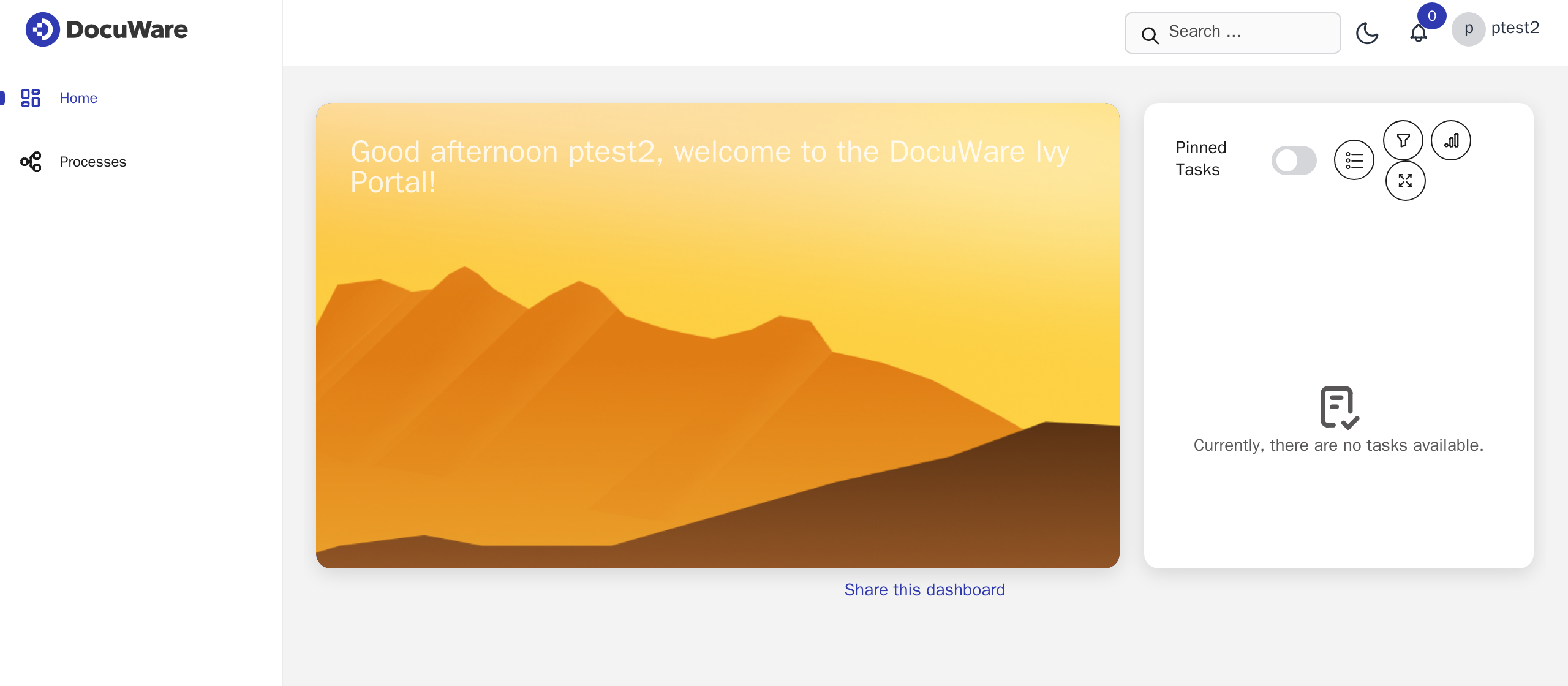
Figure 1 The dashboard on a new installation. The widgets your organisation sees can be configured, so yours may differ.
If something looks wrong
Your administrator has the Engine Cockpit and the logs. Before reporting anything, it helps to note the address you were on and what you expected to happen.
Known issues lists the behaviour that surprises people most often and is worth a look first.